Trim, cut, and shorten videos. No downloads required.
.webp)
Trim any video in seconds
Upload, trim, and export without leaving your online browser
Turn full-length videos into shorter clips
Shorten your videos into clips with an easy-to-use video trimmer. Supporting videos up to two hours, Kapwing's online clip cutter allows you to accurately trim video by the frame. Cut using the "Split" button or the S keyboard shortcut, with the audio waveforms as a visual guide. Drag the start and end time handles or move the playhead to change the duration of the video layer in the timeline. Perfect for pulling 15–60s ad cuts, removing dead air, or turning a long recording into chapters you can reuse across platforms.

Get more engagement on social media
Once uploaded to Kapwing, you can combine videos together with clips, overlays, music, and other uploads to create engaging social videos. Drag-and-drop in the timeline to experiment with new editing styles. Trim for pacing, hooks, and platform limits. Insert animations and transitions to make the video snappier.
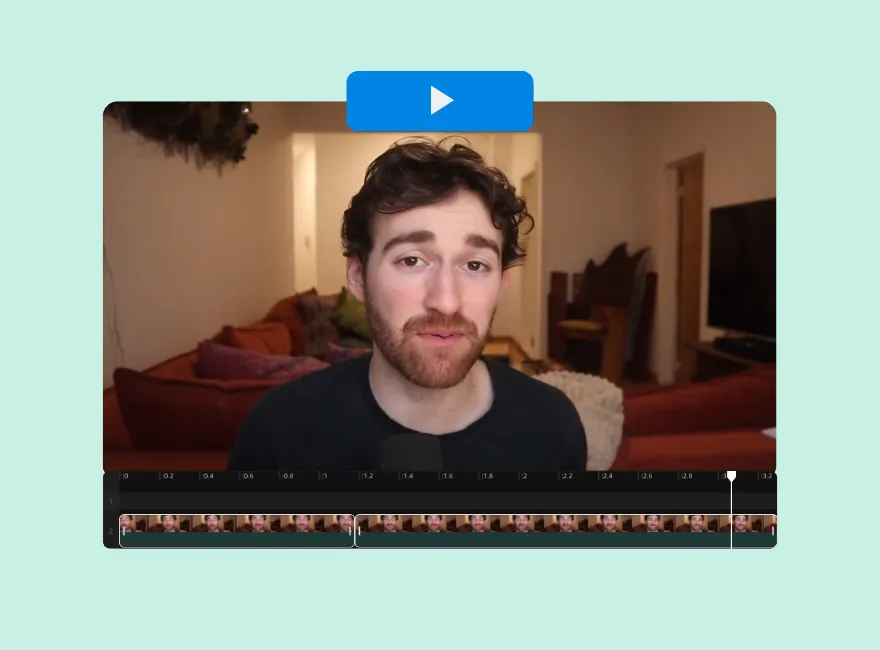
Use AI for automatic trims, splits, and cuts
If manual trimming isn't for you, Kapwing has two AI-powered tools to transform your editing experience. Text-based-editing lets you split and trim clips by deleting text from the transcript, while Clip Maker uses AI to scan your video and automatically cut it into meaningful sections. Smart Cut enables you to automatically remove silences, making the video shorter by removing breaths and dead space.
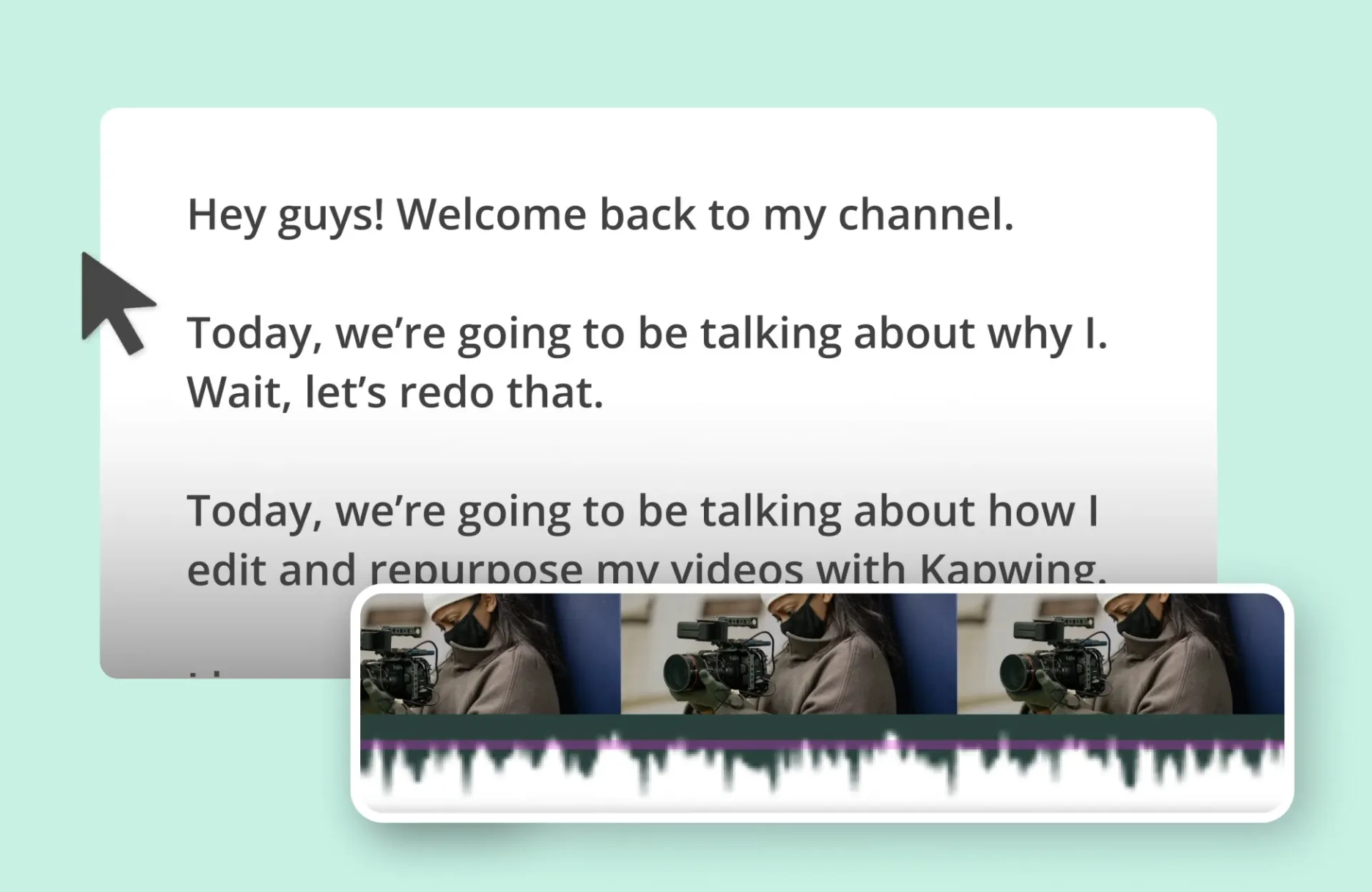
Create and repurpose video faster
Creators in every field cut and trim video online with Kapwing


Event Highlights
Event videographers shave hours off their workflow by trimming video online. Two hours of footage can be cut into short highlight videos using Kapwing's AI Clip Maker

Tutorials & Vlogs
Tutorial and vlog creators use our online clip cutter to remove awkward moments, long pauses, and extra fluff, making video editing faster, even if editing on an iPhone

Email Campaigns
Content marketers use our free video trimmer to shorten explainer videos into enticing teasers they can embed in email campaigns

Product Demos & Reviews
Shorten video online to catch the best moments of product demos and reviews, spotlighting key features and benefits, perfect for landing pages and social media posts
.webp)
Facebook & Google Ads
Digital marketers use our online clip cutter to shorten one-minute advertising videos into snappy, in-stream ads that comply with Google Ads and Facebook's length requirements
How to Trim a Video
- Step 1Upload video
Upload your video to Kapwing directly from your device or by copying and pasting a URL link. This online video trimmer supports most video formats (MP4, MOV, MKV, and more).
- Step 2Trim video
Click on the video and drag the double-sided arrows to trim it, or use the "Trimming" option in the right-hand sidebar. To split the video, place a marker where you want to add a cut and press “S” on your keyboard.
- Step 3Edit and export
Make additional edits to your trimmed video, and export when you’re ready. Download a video file or copy your own unique video URL link.
What's different about Kapwing?



Already transforming video creation across industries
Hear directly from the teams who publish faster, collaborate better, and stay ahead.


Frequently Asked Questions
We have answers to the most common questions that our users ask.
Is Kapwing's Video Trimmer free?
Yes, the Kapwing Video Trimmer is free for all users. The free plan includes some limitations to other editor features and applies a small watermark to the final video.
Is there a watermark on exports?
If you are using a Free plan then all exports — including the Video Trimmer — will contain a watermark. Once you upgrade to a Pro plan the watermark will be completely removed from your creations.
Why should I shorten long videos?
There are several key reasons to shorten online videos:
- Optimize for Mobile: Short, digestible videos are far easier to consume on mobile devices and encourage viewers to watch on the go. 63.38% of global web traffic comes from mobile devices, too, making mobile-viewing experience a top priority.
- Increase Number of Shares: Mobile videos are also shared more frequently, making them perfect for spreading your brand message and growing an audience.
- Enhanced Viewer Retention: Most online video content is now under two minutes long, and shorter videos are more likely to be watched in full, improving the chances that content will be remembered by more viewers for longer.
What factors effect video playback speed?
Video playback speed is affected by a range of factors, but some of the most common are:
- Video Resolution and Quality: Higher-resolution videos require more data to be processed, which slows down playback if your internet connection can’t handle the demand. Lower resolution videos generally load and play more quickly.
- Video Compression: While highly compressed videos have smaller file sizes, they often require more processing power to process. This affects playback speed, especially if a device can’t decode the video fast enough.
- Player or Software Efficiency: A video player or software’s efficiency at processing and rendering video affects playback speed. Optimized players, like Kapwing’s Online Video Editor, can process video more efficiently, which reduces delays and stuttering.
What’s the easiest way to trim a video?
The easiest way to trim a video is to use an online video trimmer. This allows you to avoid purchasing heavy-duty software that takes a lot of time to master, or overloading your device's storage space by downloading and saving tons of content.
Simply upload your video, select the portion you want to cut, and adjust the start and end points. Once you're happy with the selection, download your edited MP4 clip or copy the URL link for easy sharing.
Can you use the Video Trimmer on an iPhone or Android?
Kapwing works across both desktop and mobile devices. To trim a video on an iPhone or Android, start by uploading a video to Kapwing's online browser. Next, touch and drag the front or end of your video to shorten its length in the timeline. You can also press the scissor icon above the marker to make your split for free.
What video files is Kapwing compatible with?
Kapwing's Video Trimmer works with all popular file types for video (MP4, AVI, MOV, etc.). Note that video exports in Kapwing will always be MP4 and audio files will always be MP3. We feel these files represent the best tradeoff between file size and quality.
What is the difference between cutting and trimming a video?
Cutting a video involves splitting it into separate parts, allowing you to remove or rearrange specific sections. Trimming, however, means shortening the video by adjusting the start or end points to remove unwanted footage. Both techniques refine your video and are available through Kapwing.
How do I combine multiple videos into one?
To combine multiple videos into one, upload all your content to Kapwing. The videos are stored on the server, allowing you to add each clip to your project, trim it to the desired length, and then add the next clip seamlessly.
Discover Resources
Tips, templates, and deep dives to help you create faster and share with confidence.
View all


Get started with your first video in just a few clicks. Join over 35 million creators who trust Kapwing to create more content in less time.